
Add and edit sections
Add text, images, widgets and other content blocks to your guide, and reorder them so guests find what matters first.
Updated
Sections are the building blocks of a guide. Each one is made up of one or more content blocks.
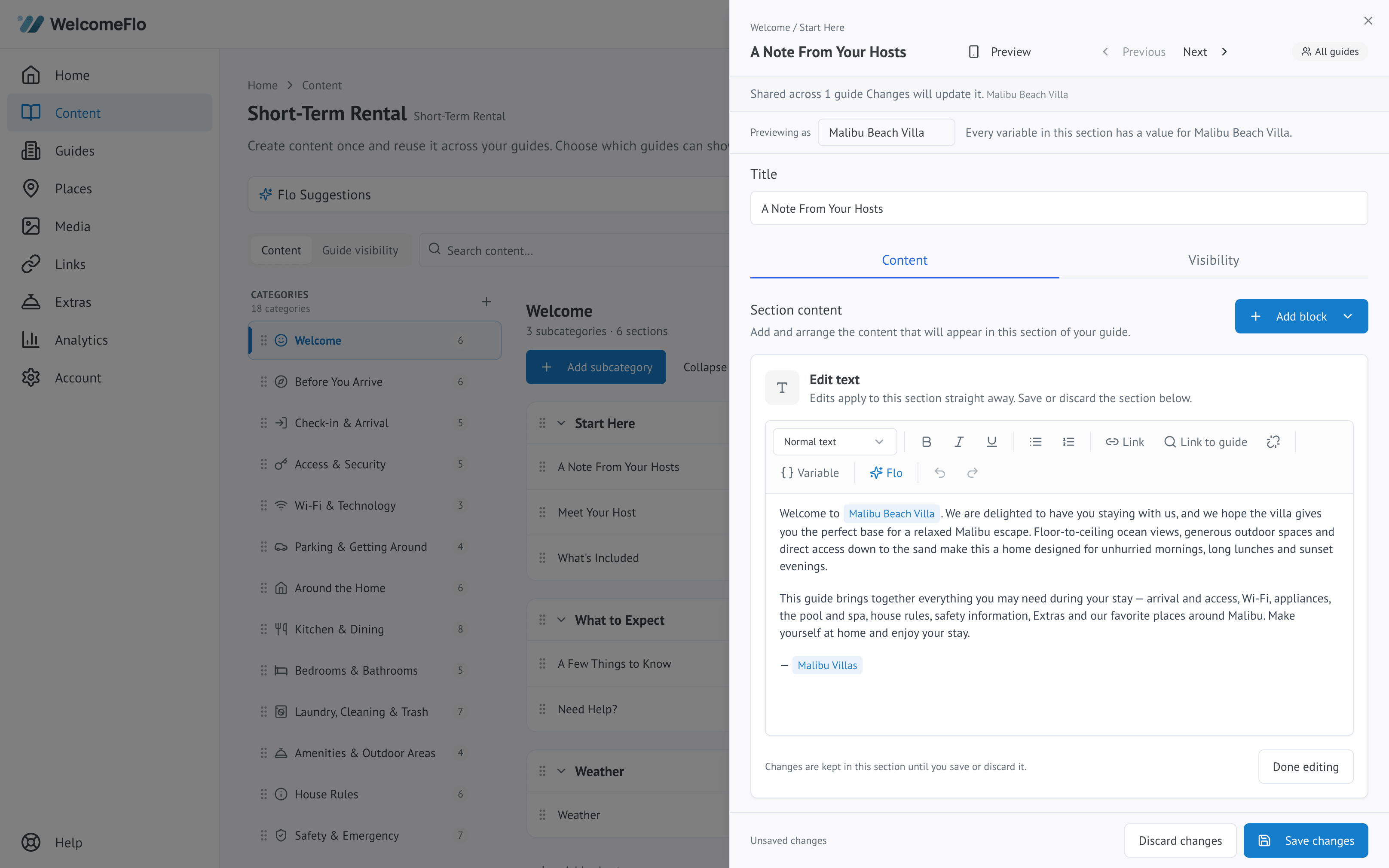
Adding a section
Open a subcategory in the guide editor and add a section. Give it a title, then add whichever blocks it needs:
- Text — instructions, explanations and house rules, with headings, lists, bold text and links
- Callout — a short highlighted note, for something guests should not miss
- Details — a list of facts as label-and-value rows, such as a set of appliance settings
- FAQ — a set of questions and answers within the section
- Image — photographs, diagrams or a picture of a control panel
- Video — an embedded video
- PDF — documents such as manuals or permits
- Wi-Fi — the network name and password, with one-tap copying for guests
- Weather — live weather for the property's location
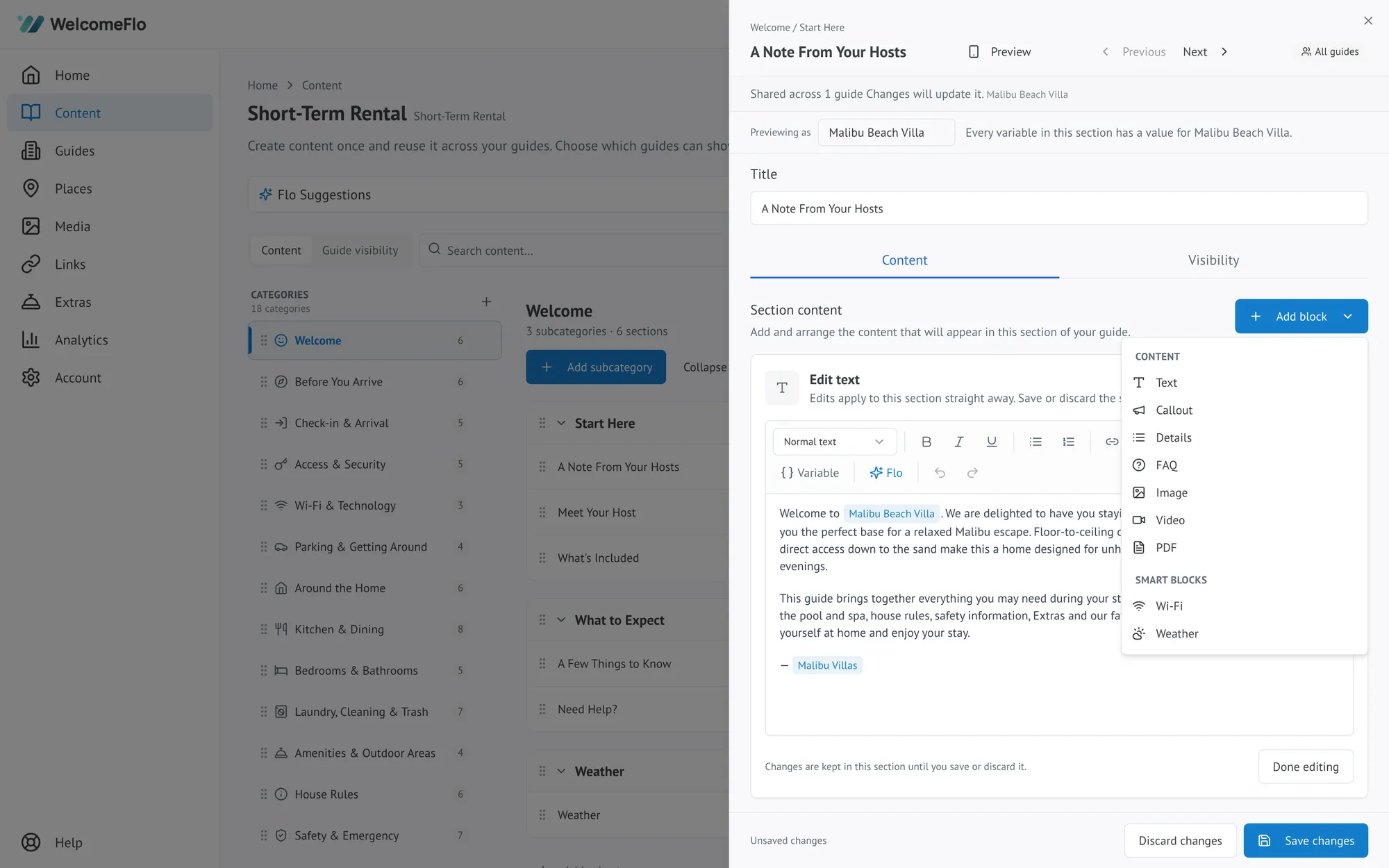
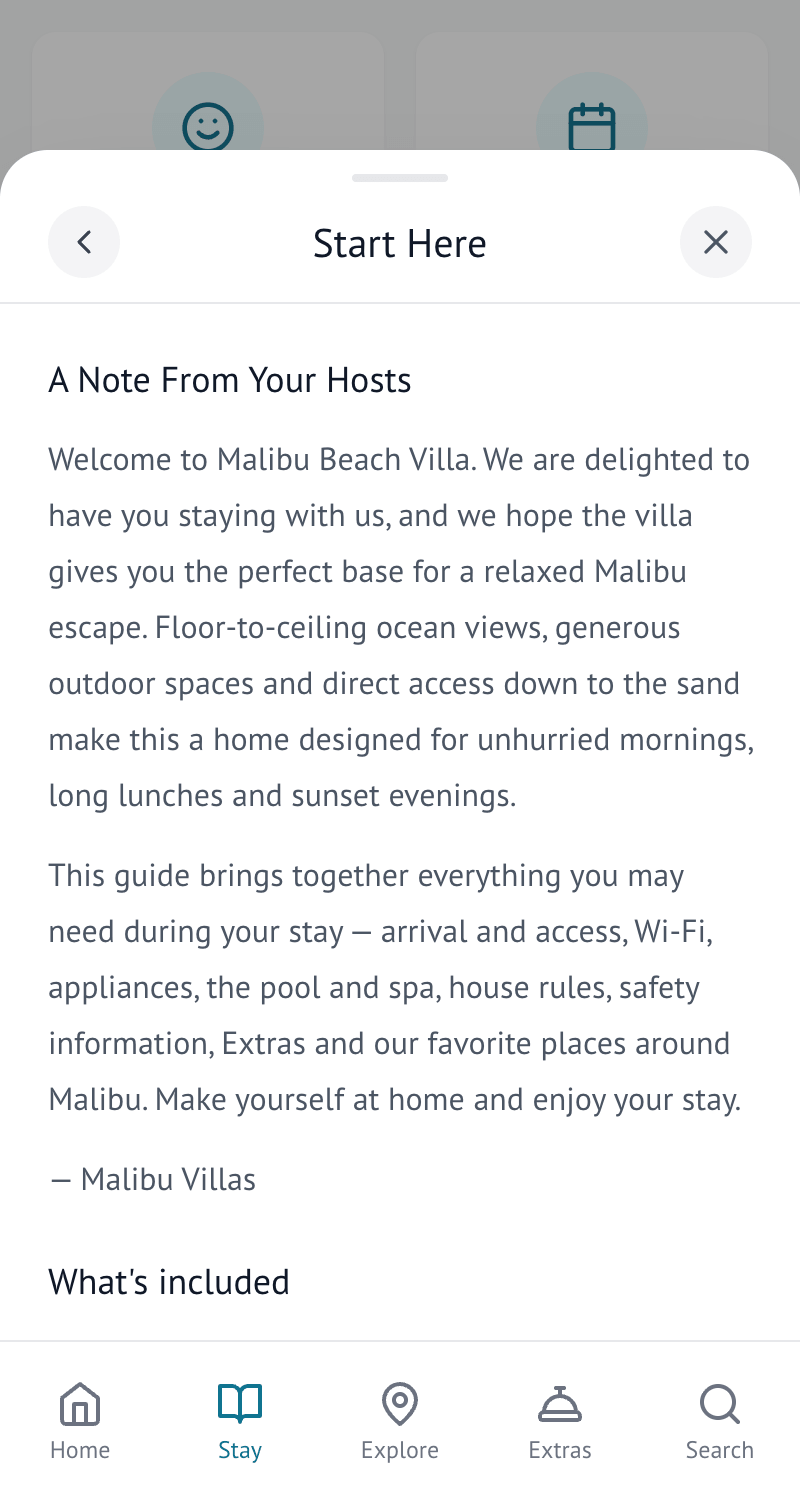
A section can combine several of these — a paragraph of text followed by a photo, say — in whatever order makes sense. Guests open a section as a sheet that slides over their current screen, so dismissing it puts them straight back where they were:
Writing text that guests will read
Short paragraphs work better than long ones. If a section runs to more than a few sentences, it is usually two sections.
Numbered steps are worth using wherever order matters — operating an appliance, or the sequence for checking out. Flo Assistant can turn a paragraph into steps for you with one click.
Reordering
Drag sections into the order guests need them. The first thing in a subcategory is the thing most people will read, so it should be the most useful.
Editing published content
Changes are live as soon as you save. There is no separate publish step for content, and no limit on how often you can edit.
Guests with the guide already open see your change when they next load the page.
