
About team members and roles
What team members are, the four roles WelcomeFlo supports, how guide access works, and which plan includes them.
Updated
Team members let more than one person work on your WelcomeFlo account, each with their own login and their own level of access. It's a Business plan feature.
Who can use it
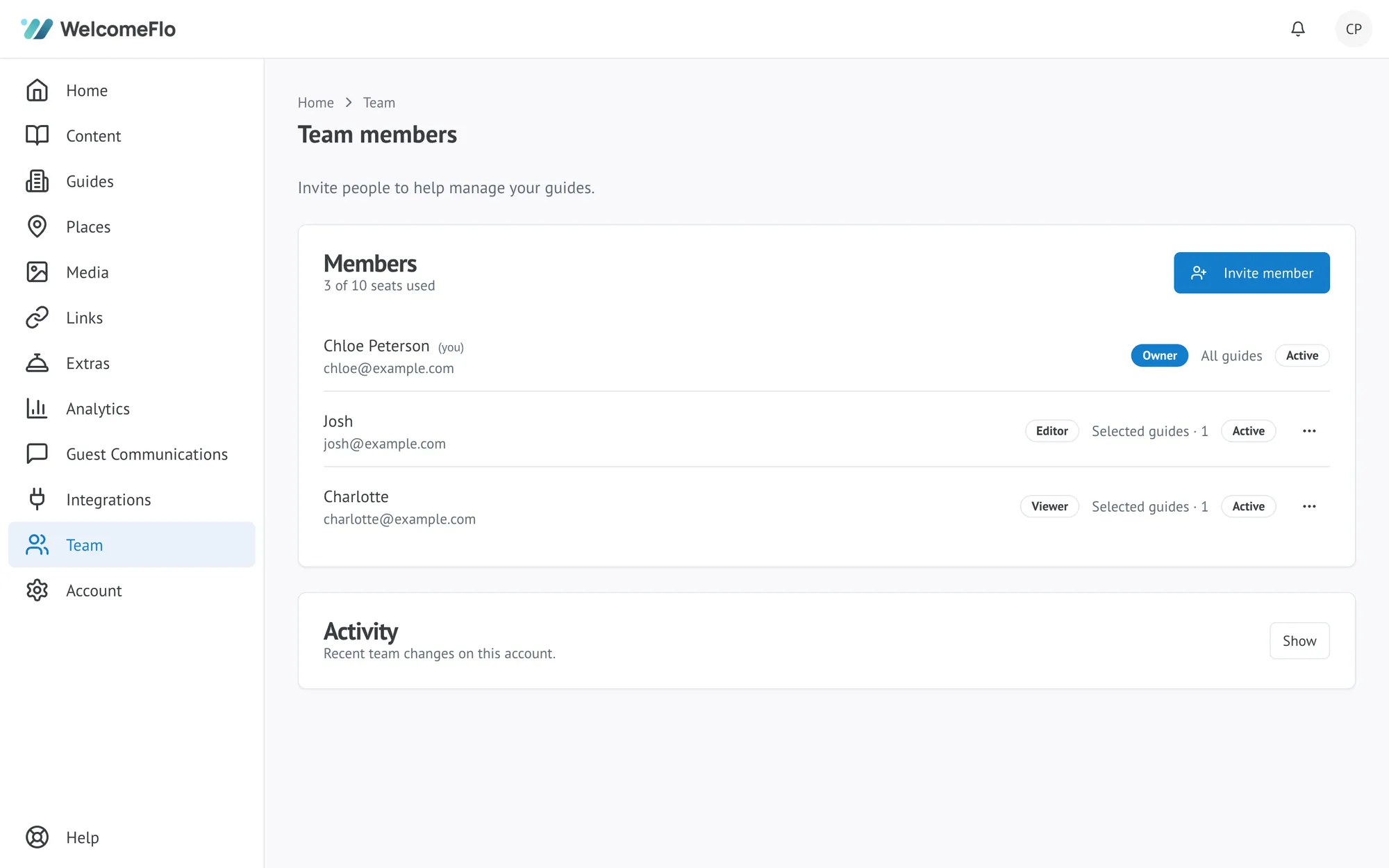
Every account starts with one person: the Owner. On Free and Pro, that's the only active member — the Team page is still there, but it's an upgrade prompt rather than a working roster. On Business, you can invite up to 10 people onto the account in total, including yourself as Owner. If you need more seats than that, contact WelcomeFlo.
If you downgrade from Business, your team isn't deleted. Members beyond what your new plan allows are suspended (earliest-invited kept active first) rather than removed — their role and guide access are kept exactly as they were, so upgrading back to Business restores your team automatically.
The four roles
Every member has exactly one role:
| Role | What they can do |
|---|---|
| Owner | Full access to everything, including billing and account deletion. There is always exactly one Owner. |
| Admin | Manages the team and all guides. Cannot touch billing or transfer ownership. |
| Editor | Edits the guides they have access to. Cannot manage the team or billing. |
| Viewer | Views the guides they have access to, read-only. |
Owner and Admin always have access to every guide on the account — that isn't something you configure. Editor and Viewer can each be set to either all guides or a specific selected set, which is what makes it possible to bring in a cleaner, a co-host or a virtual assistant who only needs to see one property.
This is a summary — see Team member roles and permissions explained for the full breakdown of what each role can and can't do across guides, Extras, Flo, integrations, guest communications, billing and more.
Guide access at a glance
- All guides — sees and (if Editor) edits every guide on the account, including ones added later.
- Selected guides — sees and (if Editor) edits only the specific guides you choose. A guide added after doesn't appear until someone with permission adds it to their access.
See Give a team member access to selected guides for how to set this up.
Getting started
- Invite a team member by email, choosing their role and guide access.
- They accept the invitation and sign in (or create an account) to join.
- From then on, you can change their role or access, or remove them at any time.
Only the Owner and Admins can invite, change or remove team members.
