
Content libraries explained
Understand content libraries — where your categories, subcategories and sections actually live — and how guides use them.
Updated
Every guide's categories, subcategories and sections belong to a content library. A single-guide account has one library, created automatically, and never needs to think about this further. It starts to matter once you manage more than one property.
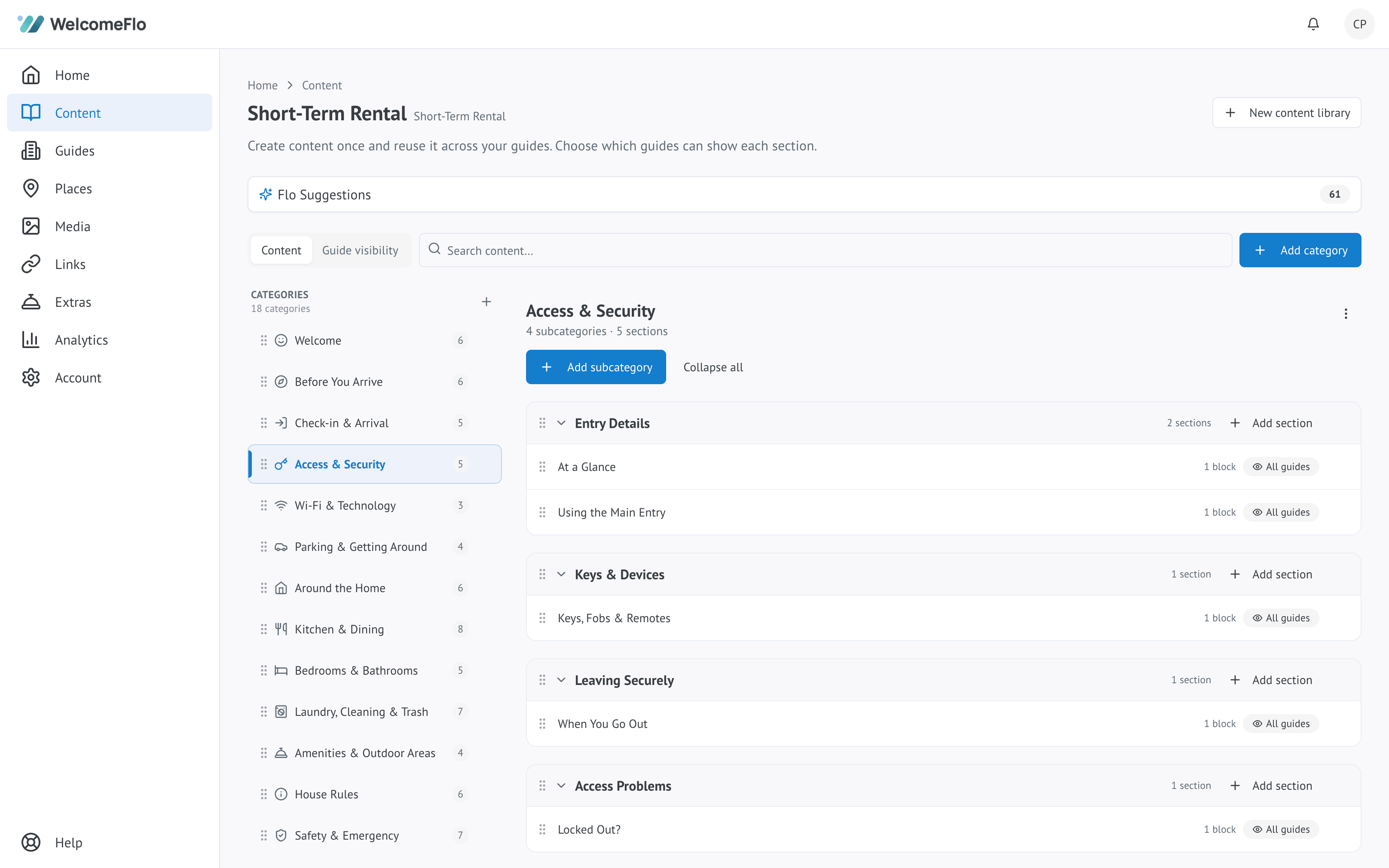
What a library is
A content library is the actual set of categories, subcategories and sections you write. A guide does not hold its own content directly — it points at one library, and shows exactly what that library contains.
One library, several guides
Point two guides at the same library and they show the same content, always. Editing a section updates every guide using that library at once — this is how most multi-property hosts avoid rewriting the same check-out instructions for every listing. Within a shared library, an individual section can still be limited to only some of the guides using it — see Share content across guides.
Several libraries, one account
You are not limited to one library. Create additional libraries for properties that need a genuinely different structure, or duplicate an existing library as the starting point for a new one rather than building from nothing.
Switching a guide's library
From a guide's settings, the Content library card shows which library it is currently using and lets you switch to a different one. Switching changes every category, subcategory and section guests see for that guide, so do this deliberately — not something to try experimentally on a live guide.
Creating, renaming and duplicating
Manage your libraries from the Content page: create a new one, rename an existing one, or duplicate one to reuse its structure for a new property. Duplicating creates a fully independent copy — editing the duplicate never affects the library it came from, or vice versa.
