
Connect Hostaway to WelcomeFlo
Step-by-step instructions for connecting your Hostaway account to WelcomeFlo, including where to find your API key.
Updated
Connecting Hostaway takes an Account ID and an API key from your Hostaway account. Only the account Owner and Admins can do this, and it requires a Pro or Business plan.
Get your Hostaway credentials
- Sign in to Hostaway.
- Go to Settings → API.
- Create a new API key.
- Keep that page open — you'll need your Account ID and the API key (client secret) it gives you.
Connect in WelcomeFlo
- Go to Integrations in the dashboard.
- On the Hostaway card, select Connect Hostaway.
- Enter your Account ID and your API Key (Client Secret).
- Select Connect.
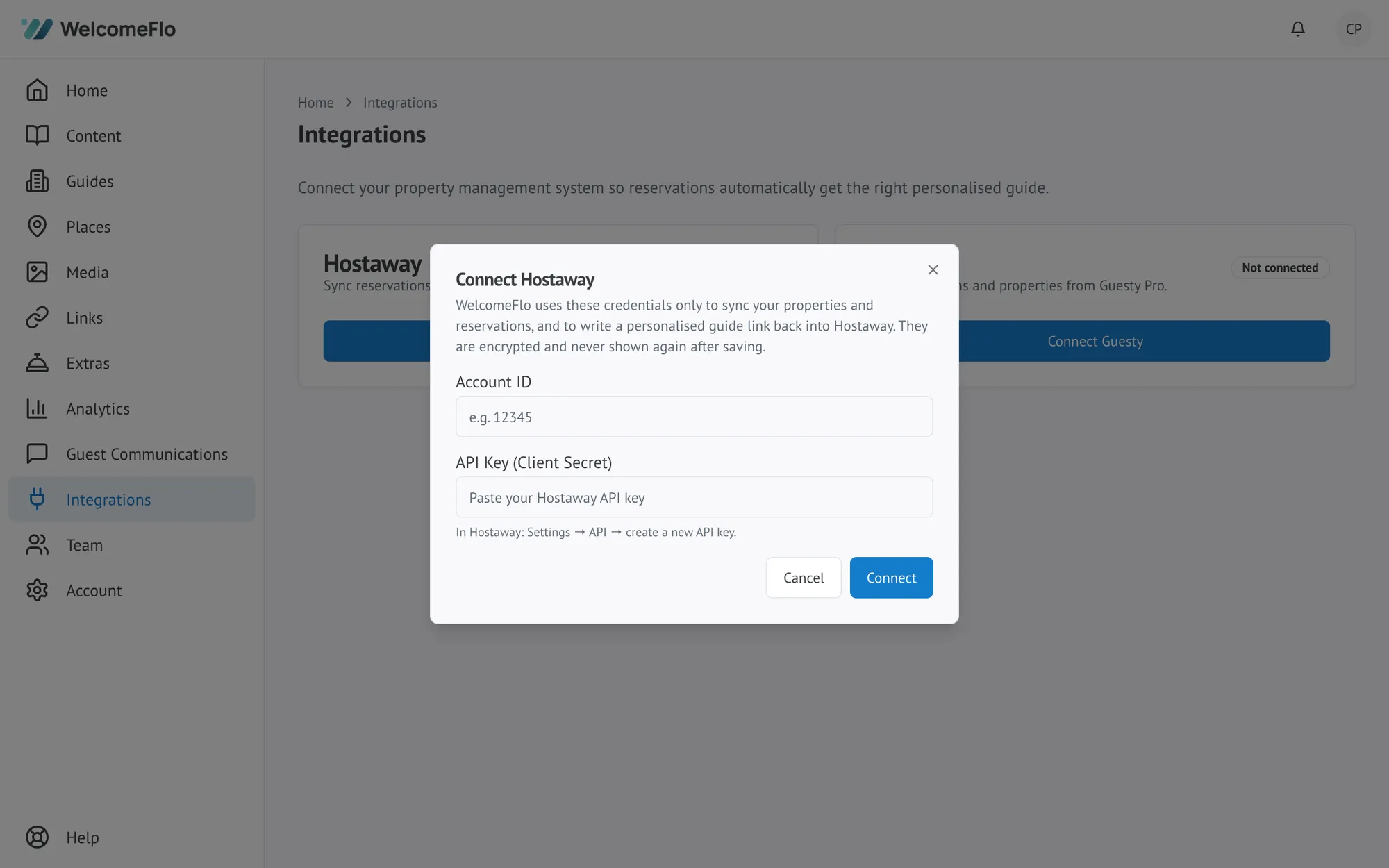
WelcomeFlo uses these only to sync your properties and reservations, and to write a personalised guide link back into Hostaway. They're encrypted and never shown again after saving.
After connecting
The Hostaway card shows Connected, your Hostaway account name or ID, and when it last synced successfully. From here you can:
- Select Test connection at any time to confirm WelcomeFlo can still authenticate with Hostaway.
- Select Properties to bring in your listings and map them to guides — see Map properties and sync reservations.
- Choose how guides reach guests — Use Hostaway messaging, Send with WelcomeFlo, or Both — covered in About Guest Communications.
Reconnecting or disconnecting
Selecting Disconnect stops syncing and stops writing guide links into Hostaway, but keeps your guides, property mappings and reservation history exactly as they are. Reconnecting with valid credentials restores everything — you won't need to remap your properties.
If it won't connect
See Troubleshoot your PMS connection for common errors like an invalid API key or a connection that needs attention.
