
Link to another part of your guide
Point guests straight to a related section so they do not have to navigate back and hunt for it.
Updated
Internal links send a guest directly to another section of the same guide.
Adding one
Select the words you want guests to tap, choose the link tool in the text editor's toolbar, and pick the section, subcategory or category it should point to instead of typing a web address.
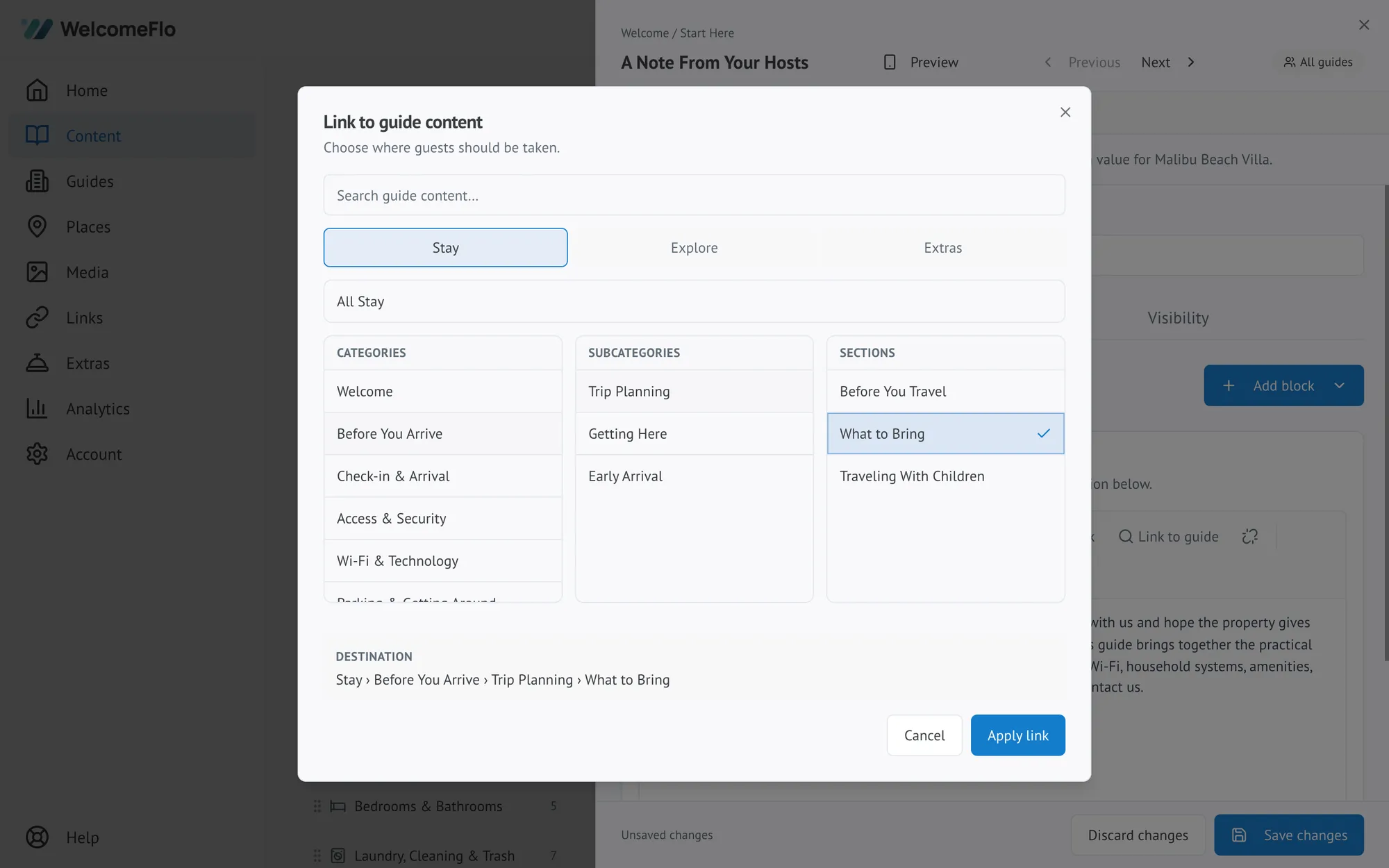
Because the link points at a piece of content rather than a typed address, it keeps working if you rename or reorder things later. If you ever delete the destination, the link stops resolving, so it is worth checking the Content page after a bigger reorganisation.
Where they earn their place
Internal links work best where one piece of information naturally leads to another:
- Check-out instructions linking to bin day
- Arrival instructions linking to Wi-Fi
- A house rule about parking linking to the parking section
- An appliance section linking to the PDF manual
Do not overdo it
A section full of links is a menu, not an answer. If a guest has to follow three links to learn one thing, the content should have been together in the first place.
One or two links at the end of a section is usually right.
External links
Links to other websites — a restaurant, a transport service, a booking page — are added the same way, using a web address instead of picking a destination in the guide.
The dashboard's Links area checks external links and flags broken ones, which is worth reviewing occasionally. Internal links cannot break in the same way, which is a reason to prefer them where either would work.
