
Set up automated guest messages
How to write guest email templates, use guide and reservation variables, and schedule automations around booking, arrival and checkout.
Updated
Automations decide when a template email goes out; templates decide what's in it. Both live under Guest Communications, and both are managed by the Owner or an Admin.
Templates
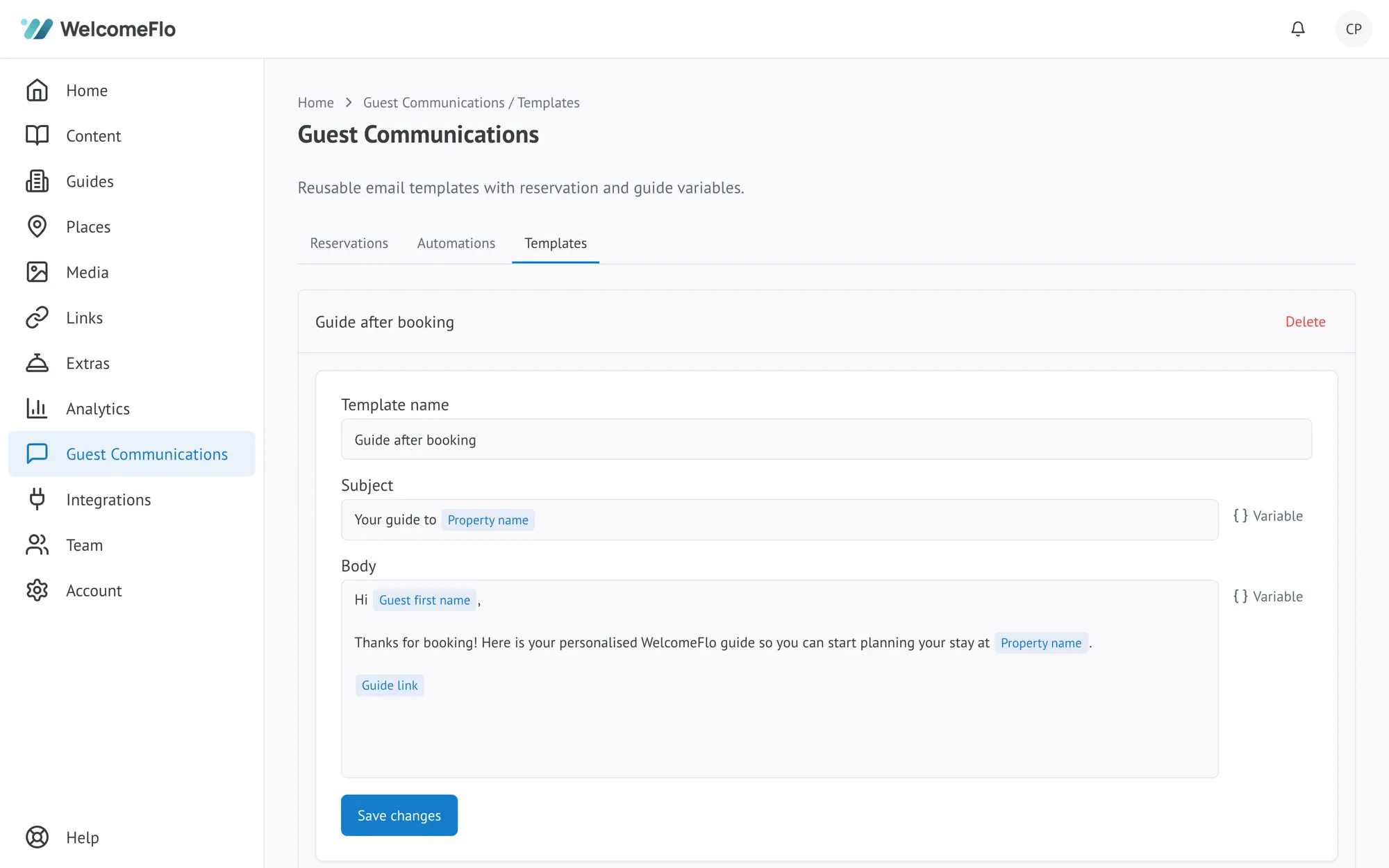
Go to Guest Communications → Templates to create or edit one. Every template has a name, a subject and a body, all written as plain text with variables you can drop in.
Guest and reservation variables
Insert a variable and WelcomeFlo fills in the real value when the email actually sends. The ones available:
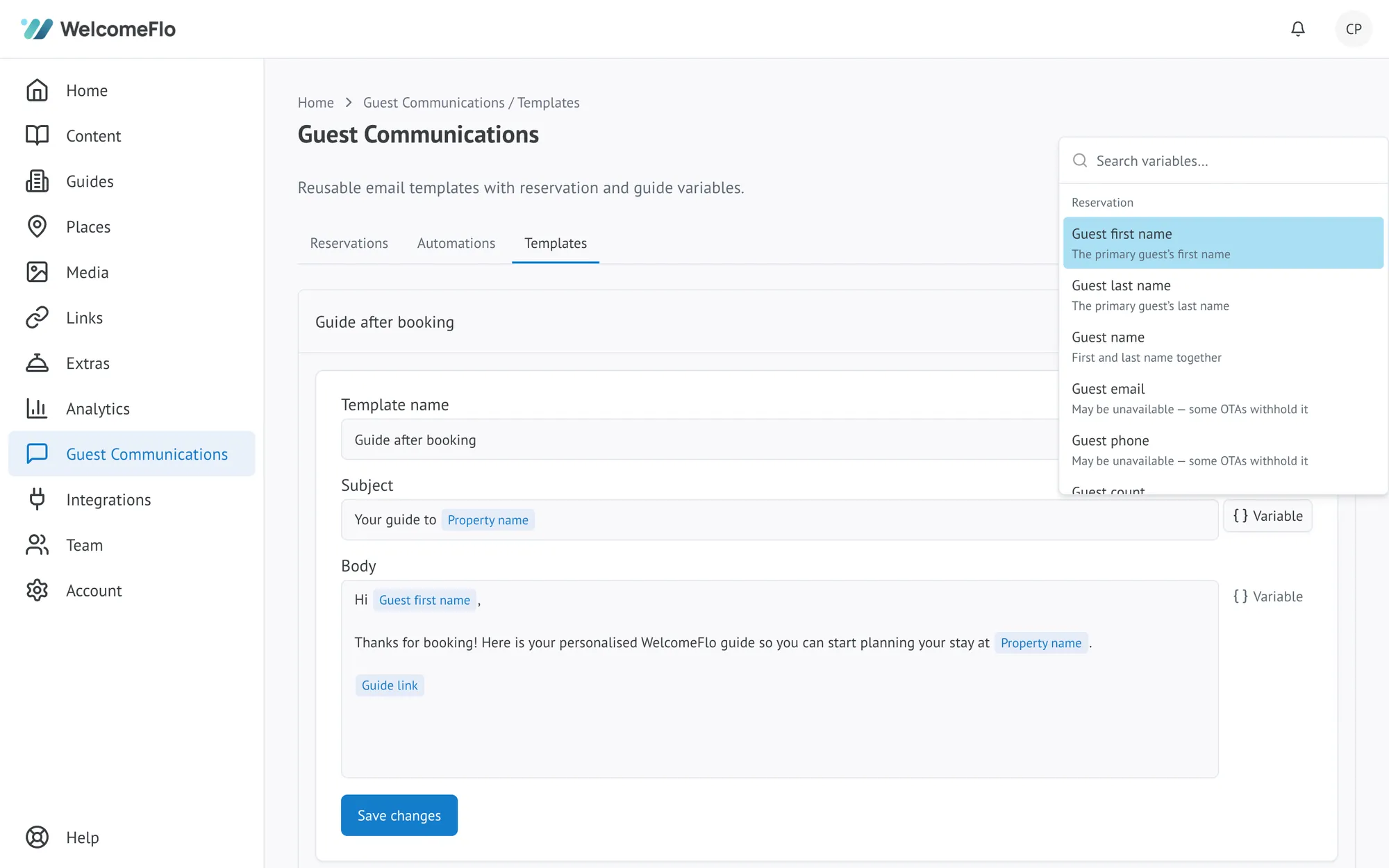
About the guide/property (from the guide itself): Property name, Property address and its individual parts, Check-in time, Check-out time, Host name, Host phone, Host WhatsApp, Host email, and the Wi-Fi Network name and Password.
About the reservation (from the synced booking):
| Variable | What it fills in |
|---|---|
| Guest first name / Guest last name / Guest name | The guest's name |
| Guest email / Guest phone | Contact details — may be blank; some booking sources don't share them |
| Guest count | Total number of guests |
| Arrival date / Departure date | Check-in / check-out date |
| Check-in time / Check-out time | This reservation's specific check-in/out time |
| Booking source | e.g. Airbnb, Booking.com, direct |
| Confirmation code / Reservation reference | The provider's booking reference |
| Door code | Only appears in the window shortly before check-in through checkout — it's hidden entirely outside that window, even if you include it in a template |
Guide link — the guest's personalised, tracked link. Every automated template should include this; it's how the guest actually gets to their guide.
A variable that has no value for a particular guest (an empty phone number, for example) is simply left blank rather than showing a broken placeholder.
Automations
Go to Guest Communications → Automations to see or add one. Each automation has:
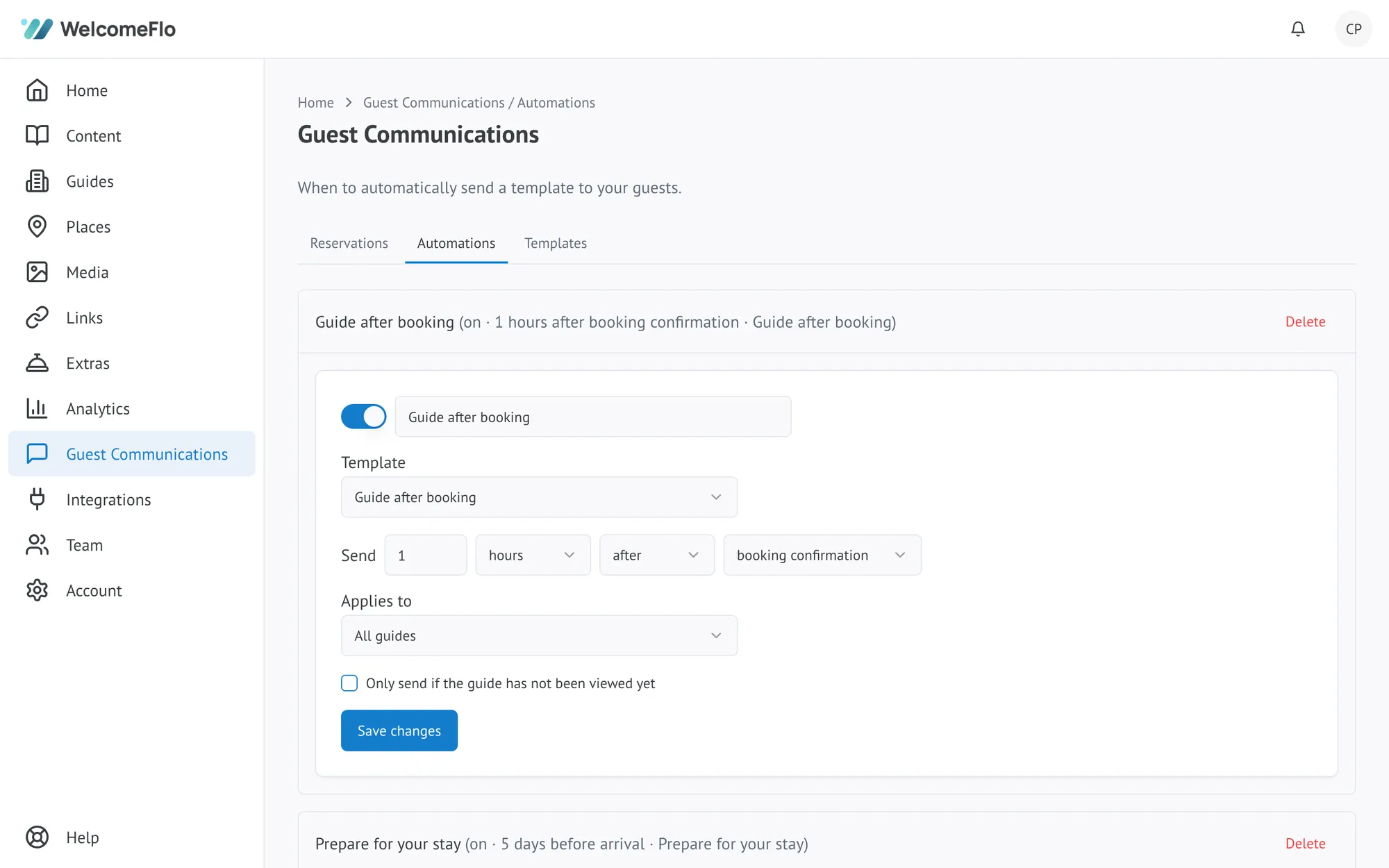
- A template to send.
- An anchor — booking confirmation, arrival, check-in, or checkout.
- A timing offset — a number of minutes, hours or days before or after that anchor.
- Which guides it applies to — all guides, or a selected set.
- An optional condition: only send if the guide has not been viewed yet — useful for a reminder you don't want to bother someone who's already opened their guide.
Every account starts with three ready-made automations you can edit or delete: Guide after booking (an hour after booking), Prepare for your stay (5 days before arrival) and Arriving tomorrow (1 day before arrival).
An automation only sends anything if the connection's delivery mode includes Send with WelcomeFlo (see About Guest Communications) — if it's set to PMS messaging only, WelcomeFlo won't also email the guest.
Timing to expect
Automations are date- and time-anchored, but WelcomeFlo checks for due messages on a daily schedule rather than the exact minute. A message can go out up to a day after the moment you scheduled it for. This is fine for "a few days before arrival" or "the day before arrival" style messages; if you need something to land at a precise hour, treat the automation's timing as approximate rather than exact.
Changing or cancelling a reservation
If a reservation's dates change, a message that hasn't sent yet is automatically rescheduled to match — one that's already sent is left alone. If a reservation is cancelled, any of its messages still waiting to send are cancelled with it, and its guide invitation is revoked. See Manage or troubleshoot guest communications for the full picture.
Duplicate sends
WelcomeFlo won't send the same automation twice for the same reservation, even if a sync or a retry runs more than once.
